Features
Pane Management
Split your terminal into multiple independent panes, each running its own PTY shell.
Ctrl+D— Split vertically (left/right)Ctrl+E— Split horizontally (top/bottom)Ctrl+W— Close the focused pane (asksy/nfirst)- Mouse drag on pane borders to resize
Panes can be nested: split a pane, then split one of the halves again. Up to 16 panes.
Minimum pane size is enforced (20 columns wide, 5 rows tall). If a split would create panes too small, the operation is silently ignored.
Tabs
Each tab is an independent workspace with its own panes, file tree, and preview.
Alt+T/Ctrl+T— New tab- Click a tab to switch
- Double-click a tab to rename
Alt+R— Rename tab (session only; submit empty to reset to auto name)Ctrl+W— Close tab (when only one pane in the tab; asksy/nfirst)
The tab name automatically updates when you cd to a different directory. A custom name takes precedence over the auto-derived name.
Status Bar
The status bar at the bottom shows available shortcuts for the current mode. The right side displays Claude Code model name, context usage, and other session info.
Alt+S— Toggle status bar visibility (reclaims 1 row for panes)
File Tree
A sidebar showing your project’s file structure.
Ctrl+F— Toggle the file treej/k— Navigate up/downEnter— Expand directory / open file preview.— Toggle hidden files (.gitis always hidden)- Mouse click — Select entry
- Mouse scroll — Scroll the tree
- Drag the right border to resize
File icons
Files are shown with language-specific icons:
| Icon | Extensions |
|---|---|
| 🦀 | .rs |
| ⚡ | .js, .ts, .jsx, .tsx |
| 🐍 | .py |
| 📄 | .md |
{ | .json |
| ⚙ | .toml |
$ | .sh, .bash, .zsh |
Syntax-Highlighted Preview
Select a file in the file tree to see its contents with syntax highlighting.
- Powered by syntect (base16-eighties theme)
- Line numbers with separator
- Scroll vertically with mouse wheel,
j/k, orPageUp/PageDown - Scroll horizontally with
h/l,Left/Right, orHome(for long lines) - Line position indicator at the bottom (
42/156) Ctrl+Wto close preview (when preview is focused)Ctrl+Pto swap preview and terminal positions
Files larger than 10MB are not previewed. Binary files show a placeholder message.
Claude Detection
When you run claude (Claude Code) inside a terminal pane, renga automatically detects it:
- Pane border turns orange (Claude’s brand color
#D97757) - Pane title changes from
shell [N]toclaude [N]
Detection works by monitoring the terminal’s window title (OSC 0/2 escape sequences).
cd Tracking
When you cd to a different directory in the shell:
- File tree updates to show the new directory
- Tab name updates to the new directory name
This is powered by OSC 7 (operating system command for current directory reporting), injected via PROMPT_COMMAND.
Text Selection & Copy
- Mouse drag in a terminal pane to select text (highlighted in blue)
- Text is automatically copied to clipboard when you release the mouse
- Click anywhere to clear selection
- Selection stays within a single pane
Terminal Scrollback
Each pane stores 10,000 lines of history.
- Mouse scroll up in a plain shell pane to browse history
↑ SCROLLindicator appears at the bottom of the pane- Any key press automatically scrolls back to the latest output
For alt-screen TUI panes, routing depends on whether the app enabled mouse reporting: apps that turn it on (Claude Code /tui fullscreen, vim with set mouse=a, lazygit, …) receive the wheel as an xterm mouse report; apps that don’t (less, etc.) get Up / Down arrow keys as an xterm/WezTerm-style fallback. See “Mouse Support” below. Set RENGA_DISABLE_MOUSE_FORWARD=1 to revert to the legacy “always scroll vt100 scrollback” behavior.
Mouse Support
| Action | Effect |
|---|---|
| Click pane | Focus that pane |
| Click tab | Switch tab |
Click + | New tab |
| Drag panel border | Resize (file tree, preview, or between panes) |
| Scroll in file tree | Scroll entries |
| Scroll in preview | Scroll file content |
| Scroll in a plain shell pane | Browse vt100 scrollback |
| Scroll in a TUI pane with mouse reporting on | Forward as xterm mouse report (Claude /tui fullscreen, vim with set mouse=a, lazygit, …) |
| Scroll in an alt-screen TUI pane with mouse reporting off | Forward Up / Down arrows as a fallback (less, etc.) |
| Drag in pane | Text selection → clipboard |
IME Input (Japanese / Chinese / Korean)
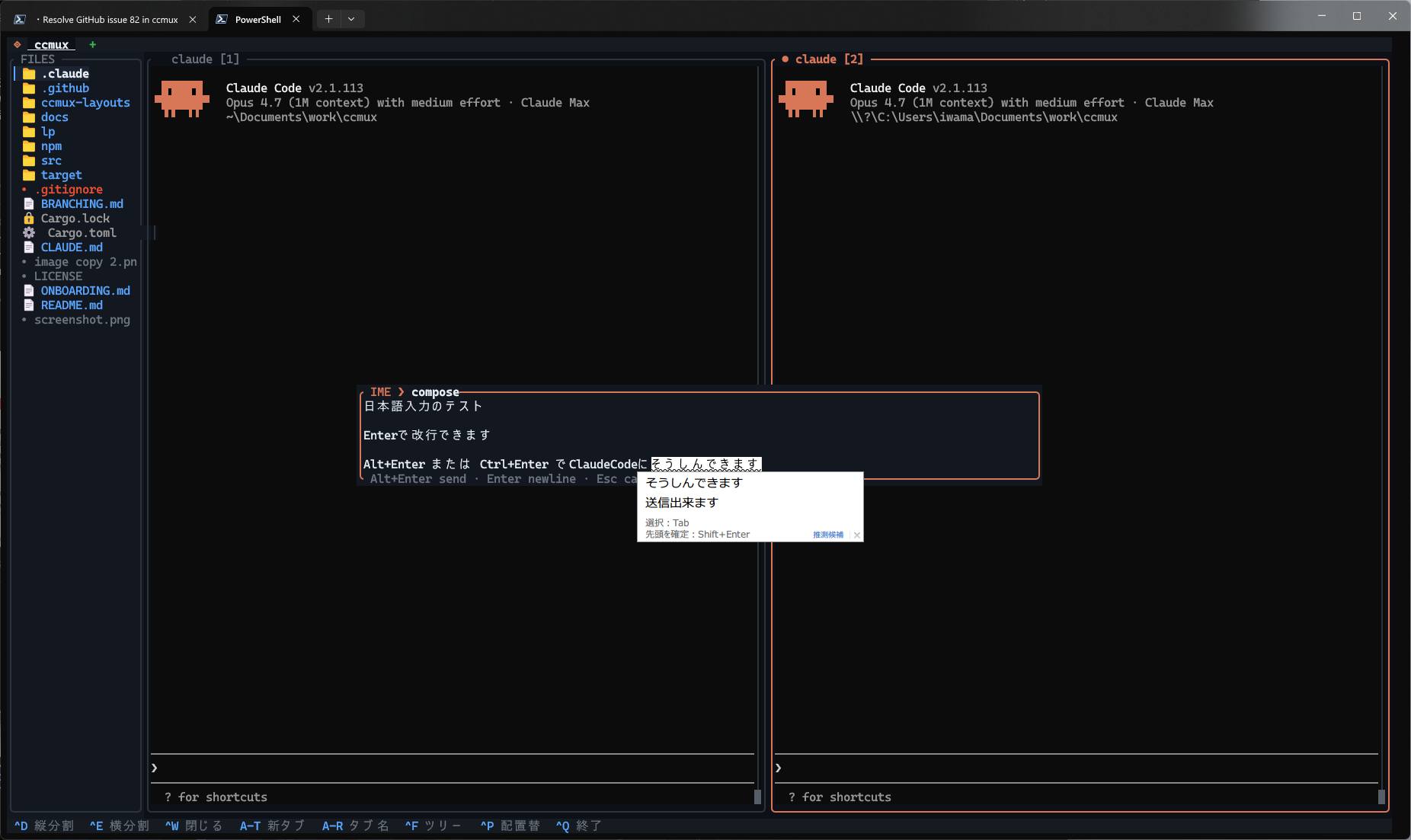
On Windows with WezTerm / zellij / other third-party terminals, the host IME anchors its candidate window to the cursor, and fast-moving TUIs like Claude Code make that anchor jump around — JP input becomes unusable. (macOS native terminals and Windows Terminal don’t reproduce the issue.)
renga paints a centered, multi-line composition overlay that floats over the pane area to give the host IME a stable anchor, and commits the confirmed text to the pane via bracketed paste. Long prompts that span multiple lines can be drafted inside the overlay and sent in one shot. If you temporarily close the overlay to inspect the pane, reopening it on the same pane restores the previous draft.
Keybindings
| Key | Action |
|---|---|
Enter / Shift+Enter | Insert newline |
Alt+Enter | Send (the canonical commit on most terminals, including macOS Option+Return). On WSL2 / Windows Terminal the host emulator binds this chord to Toggle Fullscreen and consumes it before renga sees it — use Ctrl+Enter instead (Issue #226). |
Ctrl+Enter | Send (Windows Terminal / wezterm / VS Code and most Linux terminals). Recommended on WSL2 / Windows Terminal. renga also accepts Ctrl+J, which is what these hosts deliver for Ctrl+Enter when extended-key reporting is off (a bare LF byte). |
Esc / Ctrl+C | Close the overlay and keep the draft for that pane |
← → ↑ ↓ | Navigate |
Home / End | Start / end of current line |
Ctrl+Home / Ctrl+End | Start / end of whole buffer |
Backspace | Delete char left of caret |
Three modes
Selected via the [ime] config section or --ime flag:
| Mode | Behavior |
|---|---|
hotkey (default) | Ctrl+; opens the overlay |
off | Ctrl+; is swallowed, overlay never opens. Opt-out for environments where the problem doesn’t exist |
A third mode, always, used to auto-open the overlay on every Claude pane focus. It was removed because the auto-open never worked reliably in practice.
Config file location:
- Linux:
$XDG_CONFIG_HOME/renga/config.toml(default~/.config/renga/config.toml) - macOS:
~/Library/Application Support/renga/config.toml - Windows:
%APPDATA%\renga\config.toml
The --ime hotkey|off CLI flag overrides the file. Precedence is CLI > config > default (hotkey). See the README Configuration section for more details.
Windows’ conpty layer flickers the hardware caret during ratatui’s diff paint. renga mitigates with three layers: a cursor::Hide guard around every draw transaction while the overlay is open (Windows-only, since conpty is the only observed culprit), the opt-in --ime-freeze-panes flag that suppresses PTY-output-driven repaints entirely, and the complementary --ime-overlay-catchup-ms <MS> dial that reintroduces a single periodic repaint so streaming output stays visible. See the README [ime] section for recommended defaults.
Keybindings
The status bar always shows the shortcuts available in the current mode. A summary:
Global
| Key | Action |
|---|---|
Ctrl+Q | Quit renga |
Ctrl+Right / Ctrl+Left | Cycle focus between panes / areas |
Alt+Right / Alt+Left | Switch tabs |
Alt+1 — Alt+9 | Jump to tab N |
Pane Mode
| Key | Action |
|---|---|
Ctrl+D / Ctrl+E | Split vertically / horizontally |
Ctrl+W | Close pane (close tab if only one pane), after a centered y / n confirmation |
Alt+T / Ctrl+T | New tab |
Alt+R | Rename tab (session only) |
Alt+S | Toggle status bar |
Ctrl+F | Focus file tree |
Ctrl+P | Swap preview / terminal layout |
Ctrl+; | Open the IME overlay (when mode = "hotkey") |
Tab / everything else | Forwarded to shell |
Key conflicts (not forwarded to shell)
| Key | renga action | Shell workaround |
|---|---|---|
Ctrl+D | Vertical split | exit to log out |
Ctrl+E | Horizontal split | End key |
Ctrl+F | File tree | / for less/vim search |
Ctrl+W | Raises a close confirmation (only when multiple panes) | works normally with a single pane |
Ctrl+; | IME overlay (when mode = "hotkey") | --ime off swallows the keystroke |
Small Terminal Handling
- If the terminal is smaller than 40×10, a “Terminal too small” message is shown
- Panels auto-hide when the terminal is too narrow to fit them